
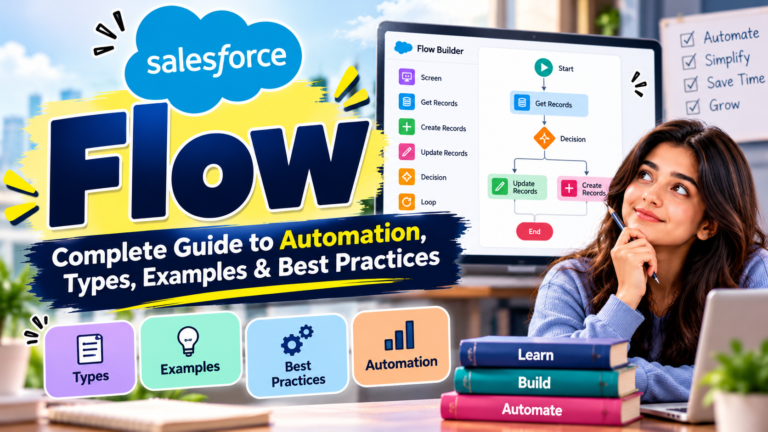
Salesforce Flow: Complete Guide to Automation, Types, Examples & Best Practices
Salesforce Flow has become one of the most important automation tools in the Salesforce ecosystem. As businesses look for ways to reduce manual work, improve productivity, and automate repetitive processes, Salesforce Flow allows administrators and developers to build powerful business automation with minimal code.
Whether you are a Salesforce beginner, Administrator, Developer, Consultant, or someone preparing for a Salesforce interview, understanding Flow is an essential skill.
Salesforce Flow can be used to automate record updates, send notifications, collect information from users, create records, perform calculations, guide users through processes, and much more.
In this complete guide, we will understand what Salesforce Flow is, the different types of Flow, important Flow elements, real-world examples, Flow vs Apex, common mistakes, best practices, and a roadmap for learning Flow.
## What Is Salesforce Flow?
Salesforce Flow is a powerful automation tool that allows you to automate business processes inside Salesforce.
Using Flow Builder, you can create automation visually by connecting different elements together.
For example, imagine a company has this requirement:
> Whenever an Opportunity is marked as Closed Won, automatically create a follow-up Task for the Account Owner.
Instead of asking an employee to create the Task manually every time, you can create a Salesforce Flow that performs the process automatically.
A simple Flow could look like:
**Opportunity Updated → Check Stage → Stage = Closed Won → Create Task**
Flow can perform actions such as:
– Create records
– Update records
– Delete records
– Get records
– Send notifications
– Send emails
– Make decisions
– Loop through records
– Collect information from users
– Call other automation
– Invoke Apex when necessary
This makes Flow one of the most important Salesforce automation technologies to learn.
# Why Is Salesforce Flow Important?
Salesforce organizations often contain repetitive business processes.
For example:
– Assigning tasks
– Updating records
– Sending notifications
– Creating related records
– Updating fields
– Collecting information
– Approving requests
– Processing service cases
Doing these activities manually consumes time and increases the possibility of human error.
Flow helps organizations automate these processes.
### Benefits of Salesforce Flow
Some major benefits include:
– Reduces manual work
– Improves productivity
– Reduces repetitive tasks
– Improves data consistency
– Supports complex business processes
– Provides a low-code automation approach
– Can be combined with Apex
– Can improve user experience
– Supports both automated and interactive processes
For Salesforce professionals, Flow is therefore not just a technical feature. It is an important business automation skill.
# Salesforce Flow Builder
Flow Builder is the visual development environment used to create Salesforce Flows.
Instead of writing large amounts of code, you can build automation by placing elements on a canvas and connecting them logically.
A typical Flow can contain:
**Start → Get Records → Decision → Assignment → Create/Update Records → End**
The exact structure depends on the business requirement.
Flow Builder allows you to visually understand the logic of your automation.
# Types of Salesforce Flow
Understanding the different Flow types is one of the most important concepts for Salesforce beginners.
## 1. Record-Triggered Flow
A Record-Triggered Flow starts automatically when a Salesforce record is created, updated, or sometimes deleted, depending on the configuration.
For example:
**Requirement:**
Whenever an Opportunity is created with an Amount greater than ₹10 lakh, notify the Sales Manager.
The Flow can be configured to start when an Opportunity is created.
Then it checks:
**Amount > ₹10,00,000?**
If yes, it performs the required action.
### Common Uses
Record-Triggered Flows can be used for:
– Updating related records
– Creating tasks
– Sending notifications
– Updating fields
– Automating business processes
– Validating or responding to record changes
Record-Triggered Flow is one of the most commonly used Flow types in Salesforce.
# 2. Screen Flow
A Screen Flow interacts directly with a Salesforce user.
It displays screens where users can enter information, select options, or review information.
For example, a company could create a Screen Flow for employee onboarding.
The Flow could ask:
– Employee Name
– Department
– Joining Date
– Manager
– Email
– Location
After the user submits the information, the Flow can create or update the necessary Salesforce records.
### Common Uses
Screen Flows are useful for:
– Guided processes
– Data collection
– Employee onboarding
– Customer support
– Application forms
– Multi-step processes
– User-driven workflows
The major difference is that the user actively interacts with a Screen Flow.
# 3. Scheduled-Triggered Flow
A Scheduled-Triggered Flow runs at a scheduled time or according to a defined schedule.
For example:
**Requirement:**
Every day, find Accounts that have not been contacted for 30 days and create follow-up Tasks.
A Scheduled-Triggered Flow can help automate this process.
### Common Uses
– Periodic data updates
– Reminder tasks
– Scheduled notifications
– Follow-up processes
– Recurring record processing
This Flow type is useful when automation should happen based on time rather than an immediate record change.
# 4. Autolaunched Flow
An Autolaunched Flow runs without a user interface.
It can be called from other Salesforce automation or processes.
For example, an organization may create a reusable Flow that performs a specific business operation.
Other automation can invoke that Flow when required.
This can help create reusable automation components.
# 5. Platform Event-Triggered Flow
Platform Event-Triggered Flows can respond when a specified platform event is received.
This can be useful in event-driven architectures where Salesforce needs to respond to events generated by Salesforce or external systems.
For advanced Salesforce professionals, understanding event-driven automation can be useful when working with integrations and enterprise architecture.
# Important Salesforce Flow Elements
To build effective Flows, you need to understand the main elements available in Flow Builder.
## Get Records
Get Records is used to retrieve Salesforce records.
For example:
You want to find the Account related to a Contact.
You can use Get Records to retrieve the Account information and use it later in the Flow.
## Create Records
Create Records is used to create new Salesforce records.
For example:
**Opportunity Closed Won → Create Follow-Up Task**
The Flow can automatically create a Task.
## Update Records
Update Records modifies existing records.
For example:
If an Opportunity becomes Closed Won, a Flow can update a field on the related Account.
## Delete Records
Delete Records can remove records when the business requirement allows it.
Because deleting data can have significant consequences, this functionality should be used carefully.
## Decision
The Decision element allows a Flow to evaluate conditions and follow different paths.
For example:
**Opportunity Amount > ₹10 lakh?**
If Yes → Notify Manager
If No → Continue Standard Process
Decision elements are essential when a Flow has multiple possible outcomes.
## Assignment
Assignment is used to assign values to variables or fields.
For example:
You may use an Assignment element to store a calculated value before updating a record.
## Loop
A Loop allows a Flow to process multiple records one at a time.
For example:
Suppose you retrieve multiple Contacts related to an Account.
You can use a Loop to process each Contact individually.
However, loops should be designed carefully, especially when working with large data volumes.
# Real-World Salesforce Flow Example
Let’s understand a practical scenario.
### Requirement
Whenever a new Opportunity is created:
– If Amount is greater than ₹5 lakh
– Notify the Sales Manager
– Create a follow-up Task
– Update a custom field
### Flow Logic
The automation could look like:
**Start**
↓
**Opportunity Created**
↓
**Decision: Amount > ₹5 lakh?**
↓
**Yes**
↓
**Create Task**
↓
**Send Notification**
↓
**Update Opportunity**
↓
**End**
This simple example demonstrates how multiple Flow elements can work together.
# Another Real-World Example: Employee Onboarding
Suppose a company wants to automate employee onboarding.
A Screen Flow can ask the HR employee for:
– Employee Name
– Department
– Joining Date
– Manager
– Email
– Location
After submission, the Flow can:
1. Create the employee-related record.
2. Assign a manager.
3. Create onboarding Tasks.
4. Send notifications.
5. Update relevant records.
Instead of using multiple manual steps, one guided Flow can manage the process.
# Salesforce Flow vs Apex
One of the most common Salesforce interview questions is:
**When should you use Flow and when should you use Apex?**
Flow is a declarative automation tool, while Apex is Salesforce’s programming language.
### Flow
Flow is generally suitable when:
– The requirement can be handled declaratively.
– The automation is reasonably straightforward.
– Administrators need to maintain the solution.
– Complex custom code is not required.
### Apex
Apex may be more appropriate when:
– Complex business logic is required.
– Advanced processing is necessary.
– Custom integrations are needed.
– The requirement cannot be efficiently handled using declarative tools.
– Specialized programmatic behavior is required.
The goal should not be to choose Flow simply because it requires less code.
The right solution depends on the business requirement, scalability, maintainability, and Salesforce architecture.
# Flow vs Workflow Rules
Salesforce professionals often compare Flow with Workflow Rules.
Workflow Rules are an older automation technology.
Flow provides significantly broader automation capabilities and can handle more complex processes.
For example, Flow can support:
– Screen-based experiences
– Complex decisions
– Loops
– Multiple actions
– Data retrieval
– Record creation
– Record updates
– More advanced automation scenarios
For new automation requirements, Salesforce professionals should generally evaluate Flow first rather than automatically choosing older automation technologies.
# Common Salesforce Flow Mistakes
Beginners often make several mistakes while creating Flows.
## 1. Creating Too Many Queries
Repeatedly retrieving the same records can make automation inefficient.
Plan your data retrieval carefully.
## 2. Poor Loop Design
Processing large numbers of records inside loops without considering limits can cause problems.
Avoid unnecessary queries and DML operations inside loops.
## 3. Ignoring Fault Paths
Automation can fail.
Using Fault paths where appropriate can help handle errors more gracefully.
## 4. Building Extremely Complex Flows
A Flow that contains too much logic can become difficult to maintain.
Break large business processes into logical, reusable components where appropriate.
## 5. Not Testing Different Scenarios
Do not test only the successful scenario.
Test:
– Valid data
– Invalid data
– Missing data
– Multiple records
– Different user permissions
– Different business conditions
– Error scenarios
# Salesforce Flow Best Practices
Following best practices is important when building production-ready automation.
### 1. Understand the Requirement First
Before opening Flow Builder, understand the business process.
Ask:
– What triggers the automation?
– What should happen?
– What data is required?
– What happens if the condition is false?
– What happens if an error occurs?
### 2. Use Clear Naming Conventions
Use meaningful names for:
– Flows
– Variables
– Decisions
– Assignments
– Get Records
– Update Records
Good naming makes maintenance easier.
### 3. Avoid Unnecessary Automation
Do not create automation simply because you can.
Every Flow should have a clear business purpose.
### 4. Think About Performance
Consider Salesforce governor limits, data volume, and transaction behavior.
Efficient automation is particularly important in enterprise environments.
### 5. Test Thoroughly
Always test different scenarios before activating a Flow.
### 6. Document Important Logic
For complex automation, documentation can help future administrators and developers understand why the Flow exists and how it works.
# Salesforce Flow Interview Questions
If you are preparing for a Salesforce interview, you should be comfortable answering questions such as:
1. What is Salesforce Flow?
2. What are the different types of Flow?
3. What is a Record-Triggered Flow?
4. What is a Screen Flow?
5. What is a Scheduled-Triggered Flow?
6. What is an Autolaunched Flow?
7. What is the difference between Flow and Apex?
8. What is the Decision element?
9. What is the Assignment element?
10. What is Get Records?
11. What is a Loop in Flow?
12. How do you avoid unnecessary queries?
13. How do you handle errors in Flow?
14. How do you debug a Flow?
15. When should you use Flow instead of Apex?
Don’t just memorize definitions.
Practice explaining each concept with a real-world scenario.
# How to Learn Salesforce Flow
If you are a beginner, follow a structured learning approach.
### Step 1: Learn Salesforce Fundamentals
Understand:
– Objects
– Fields
– Records
– Relationships
– Users
– Security
### Step 2: Learn Basic Flow Elements
Start with:
– Get Records
– Create Records
– Update Records
– Decision
– Assignment
### Step 3: Build Simple Flows
Start with simple automation.
Example:
**When Lead Status changes → Update a field**
### Step 4: Learn Advanced Concepts
Move to:
– Loops
– Collections
– Scheduled automation
– Screen Flows
– Subflows
– Error
Newsletter
Recent Posts
Salesforce Flow: Complete Guide to Automation, Types, Examples & Best Practices
Salesforce Flow has become one of the most important automation

Project GIB | Great Indian Bustard Conservation | Critically Endangered Species | Current Affairs
Project GIB is a flagship conservation initiative focused on protecting
India’s Forex Reserves at $747.6 Billion | RBI Data October 2026 | Current Affairs
According to RBI data released in October 2026, India’s foreign

India Wins Hockey Gold at Asian Games 2026 | India Beats Malaysia 5-1 | Sports Current Affairs
India clinched the gold medal in men’s field hockey at