
Salesforce Formula Fields: Complete Beginner’s Guide
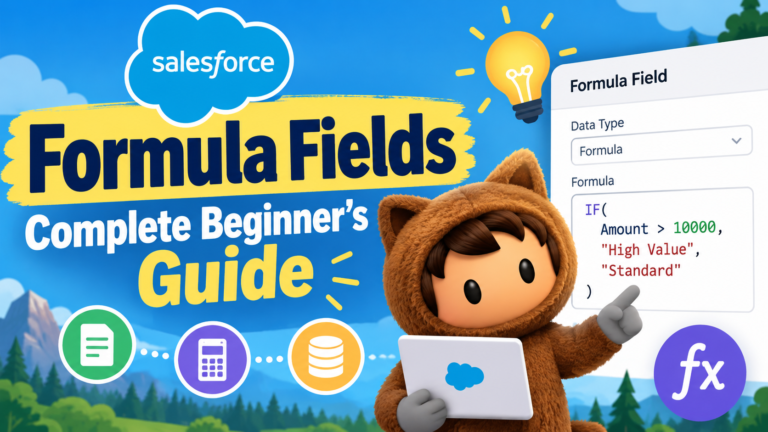
Salesforce Formula Fields are one of the most useful features for automating calculations and displaying dynamic information without writing code. Whether you are a Salesforce Administrator, Developer, or beginner preparing for a Salesforce career, understanding formula fields can help you build smarter and more efficient solutions.
In this guide, we’ll explain what Salesforce Formula Fields are, how they work, their common functions, practical examples, limitations, and best practices.
## What Is a Formula Field in Salesforce?
A **Formula Field** is a read-only field that automatically calculates and displays a value based on a formula you define.
Instead of manually entering or updating data, Salesforce calculates the value whenever the record is accessed.
For example, suppose an Opportunity contains:
**Amount = ₹50,000**
**Discount = 10%**
You could create a formula field to calculate the final amount automatically.
**Formula:**
`Amount – (Amount * 0.10)`
The calculated result would be:
**Final Amount = ₹45,000**
Because the field is calculated dynamically, users don’t need to update the value manually.
## Why Use Formula Fields in Salesforce?
Formula fields are useful when you need information to be automatically derived from existing Salesforce data.
They can help you:
– Perform mathematical calculations
– Combine information from multiple fields
– Display conditional results
– Calculate dates and time periods
– Reference fields from related records
– Categorize records automatically
– Reduce manual data entry
– Keep calculated information consistent
One major advantage is that formula fields require **no Apex code**.
## How Do Formula Fields Work?
A formula field doesn’t normally store a manually entered value. Instead, Salesforce evaluates the formula and displays the resulting value.
The basic process is:
**Existing Record Data → Formula Logic → Calculated Result**
For example:
`FirstName & ” ” & LastName`
If:
**First Name = Rahul**
**Last Name = Sharma**
The formula returns:
**Rahul Sharma**
If the underlying values change, the formula result changes automatically.
## Formula Field Return Types
When creating a formula field, you need to specify what type of value the formula should return.
Common return types include:
**Checkbox** – Returns TRUE or FALSE.
**Currency** – Displays a monetary value.
**Date** – Returns a date.
**Date/Time** – Returns both date and time.
**Number** – Returns a numerical result.
**Percent** – Displays a percentage.
**Text** – Returns text.
Choosing the correct return type is important because it determines how Salesforce displays and handles the formula result.
## How to Create a Formula Field in Salesforce
To create a formula field:
1. Go to **Setup**.
2. Open **Object Manager**.
3. Select the required object.
4. Go to **Fields & Relationships**.
5. Click **New**.
6. Select **Formula** as the field type.
7. Click **Next**.
8. Enter the **Field Label** and **Field Name**.
9. Select the appropriate **Formula Return Type**.
10. Write your formula.
11. Use **Check Syntax** to identify errors.
12. Configure field-level security.
13. Add the field to the required page layouts.
14. Save the field.
The formula field can now display its calculated result on records.
## Common Salesforce Formula Functions
Salesforce provides many functions that make formulas more powerful.
### IF()
`IF()` checks a condition and returns one value when the condition is true and another when it is false.
**Example:**
`IF(Amount > 100000, “High Value”, “Standard”)`
An Opportunity above ₹100,000 will display **High Value**; otherwise, it displays **Standard**.
### AND()
`AND()` returns TRUE when all specified conditions are true.
**Example:**
`AND(Amount > 50000, Probability > 70)`
This returns TRUE only when both conditions are satisfied.
### OR()
`OR()` returns TRUE when at least one condition is true.
**Example:**
`OR(Industry = “Banking”, Industry = “Insurance”)`
### ISBLANK()
`ISBLANK()` checks whether a field contains no value.
**Example:**
`IF(ISBLANK(Phone), “Phone Missing”, “Phone Available”)`
This can be useful for identifying incomplete records.
### TODAY()
`TODAY()` returns the current date.
For example:
`TODAY() – CreatedDate`
In practice, make sure the data types used in date calculations are compatible.
### TEXT()
`TEXT()` converts certain values into text so they can be used in text-based formulas.
### ISPICKVAL()
Picklist values generally require functions designed for picklists.
**Example:**
`ISPICKVAL(StageName, “Closed Won”)`
This checks whether the Opportunity Stage equals **Closed Won**.
## Practical Formula Field Examples
### Example 1: Calculate Total Price
Suppose you have quantity and unit-price fields.
`Quantity__c * Unit_Price__c`
If:
**Quantity = 5**
**Unit Price = ₹2,000**
The result is:
**₹10,000**
### Example 2: Customer Category
`IF(AnnualRevenue > 10000000, “Premium Customer”, “Standard Customer”)`
This automatically categorizes customers based on revenue.
### Example 3: Display Full Name
`First_Name__c & ” ” & Last_Name__c`
The formula combines two text fields into one value.
### Example 4: Check Whether a Date Has Passed
`End_Date__c < TODAY()`
This checkbox formula returns TRUE when the specified end date is earlier than today’s date.
### Example 5: Days Until Deadline
`Deadline__c – TODAY()`
This can display the number of days remaining before a deadline.
## Cross-Object Formula Fields
Formula fields can also reference data from related records.
For example, suppose a Contact is related to an Account and you want to display information from that Account on the Contact.
A cross-object formula can reference the parent record’s field without requiring users to copy the information manually.
Conceptually:
**Contact → Related Account → Account Information**
This is particularly useful when related information needs to be visible across Salesforce records.
However, cross-object formula capabilities depend on the relationship and Salesforce’s formula-field limits.
## Formula Fields vs Workflow/Flow
Beginners sometimes confuse Formula Fields with Salesforce Flow.
A **Formula Field** calculates and displays a value dynamically.
A **Flow** can perform automation and actions, such as creating or updating records, sending notifications, or guiding users through a process.
For example:
**Need to display Total Price?** → Formula Field
**Need to update another record automatically?** → Flow may be more appropriate.
Formula fields are primarily about **calculation and display**, while Flow is designed for broader **business-process automation**.
## Advantages of Salesforce Formula Fields
Formula fields provide several benefits:
**No coding required:** Many calculations can be created without Apex.
**Automatic calculation:** Results change when the underlying data changes.
**Consistency:** Users don’t have to calculate values manually.
**Reduced data entry:** Derived information doesn’t need to be entered repeatedly.
**Flexible logic:** Functions such as IF, AND, OR, TODAY, TEXT, and ISPICKVAL can support sophisticated business logic.
**Cross-object references:** Certain related-record values can be displayed without duplicating data.
## Limitations of Formula Fields
Formula fields are powerful, but they aren’t suitable for every situation.
Important considerations include:
– Formula fields are read-only to users.
– Formula size and complexity are subject to Salesforce limits.
– Cross-object references have platform limits.
– Certain field types and functions have restrictions.
– Complex formulas can become difficult to maintain.
– Formula fields calculate results rather than functioning like ordinary user-entered fields.
– Large numbers of complex formulas can make an org harder to understand and maintain.
Always check the current Salesforce documentation when designing formulas that approach platform limits.
## Best Practices for Formula Fields
Keep formulas as simple and readable as possible.
Use clear field names so other administrators and developers can understand the logic.
Test formulas with multiple scenarios, including blank values and unexpected data.
Use **Check Syntax** before saving.
Avoid unnecessarily repeating the same logic.
Document complex formulas so future administrators understand why they were created.
Choose the correct return type before building the formula.
Most importantly, use a formula field when you need a **calculated value**, rather than using it as a substitute for automation that should be handled by Flow or Apex.
## Formula Field Interview Question
**Question: What is a Formula Field in Salesforce?**
**Answer:** A Formula Field is a read-only field that dynamically calculates a value using other fields, expressions, operators, and functions. The displayed result changes automatically when the underlying data used by the formula changes.
## Conclusion
Salesforce Formula Fields are an essential skill for anyone learning Salesforce administration or development. They allow you to perform calculations, apply conditional logic, combine information, work with dates, and display related data without requiring users to update calculated values manually.
For beginners, start with simple functions such as **IF(), AND(), OR(), ISBLANK(), TODAY(), TEXT(), and ISPICKVAL()**. Once you understand these fundamentals, you can gradually move toward more advanced formulas and cross-object calculations.
Mastering formula fields will help you build cleaner, smarter, and more automated Salesforce solutions.
Newsletter
Recent Posts
Salesforce Formula Fields: Complete Beginner’s Guide
Salesforce Formula Fields are one of the most useful features

How Is Frontier AI Safety Checked? 🤖🛡️ | Independent AI Evaluation Explained | Current Affairs Q8
How do experts check whether powerful frontier AI models are

Which Language Stumped AI? 🤖🌐 | Stanford Study Reveals the Challenge | Current Affairs Q7
Which language proved especially challenging for AI? 🤖🌐
Test your

India–New Zealand FTA Comes into Effect on 20 October 2026 🇮🇳🇳🇿 | Current Affairs MCQ Q10
Q10. India’s landmark Free Trade Agreement (FTA) came into effect